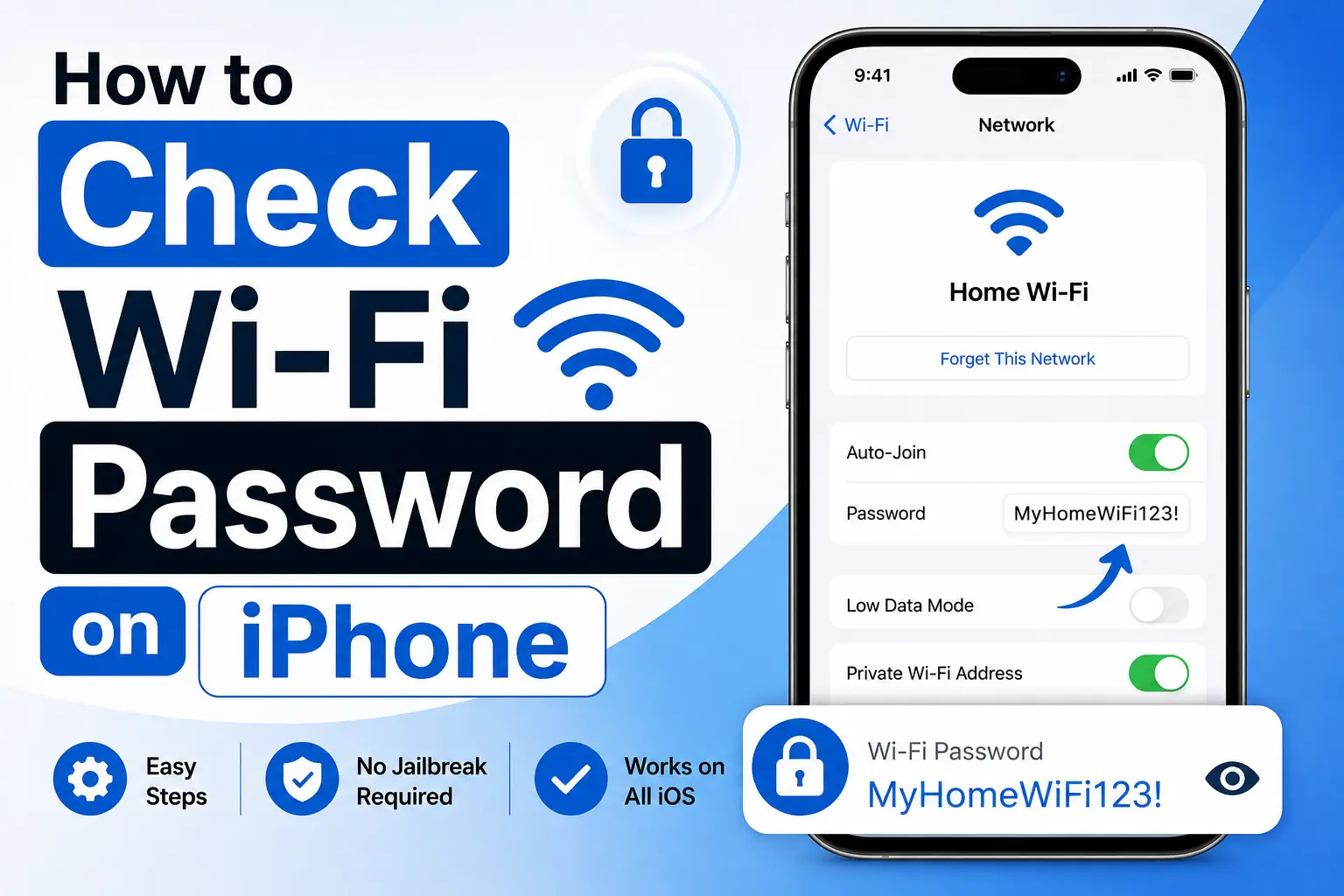
If you need to share your home Wi-Fi or move a new device online, your iPhone can often show the password for a network you already joined. This guide is for viewing your own saved network password, not guessing someone else’s Wi-Fi.
View a Wi-Fi password on iPhone (modern iOS)
- Open Settings → Wi-Fi.
- Tap the information button (ⓘ) next to the network you are using (or a saved network).
- Tap Password.
- Authenticate with Face ID, Touch ID, or your passcode.
- The Wi-Fi password appears so you can copy or read it.
Menu names can vary slightly by iOS version. If you do not see Password, update iOS or use the router method below.
If iPhone will not show the password
- You must be able to unlock the iPhone (owner authentication).
- The network must be saved on the device.
- Managed school or work profiles may hide passwords.
Fallback: log into the router admin page and read the wireless passphrase there. Start with How to log into your router, then open Wireless or Wi-Fi settings. Common gateways: 192.168.1.1, 192.168.0.1, 10.0.0.1 (Xfinity).
Find your iPhone’s IP address (related)
Wi-Fi password and IP address are different. To see the iPhone’s local IP: Settings → Wi-Fi → ⓘ → IP Address. That is a LAN address, not the router login IP. Learn more in public vs local vs gateway IP, or use What is my local IP? in Safari.
Sharing Wi-Fi without spelling the password
Once you know the passphrase, you can create a guest QR code with our Wi-Fi QR code generator, or generate a new strong password with the Wi-Fi password generator and update it on the router.